

Joint Sessions Evaluator Guide
This guide aims to explain how to perform the task of evaluating a Workshop Proposal for the ECPR Joint Sessions.
- Either open your web browser and navigate to the ECPR website at at www.ecpr.eu, or follow the link provided in the email that notified you of the need to perform this task.
- If you are not already logged in, please login to your account.
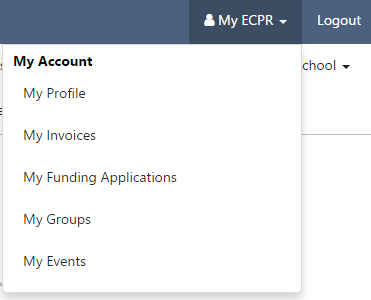
- Select the My Events menu item from the My ECPR menu:
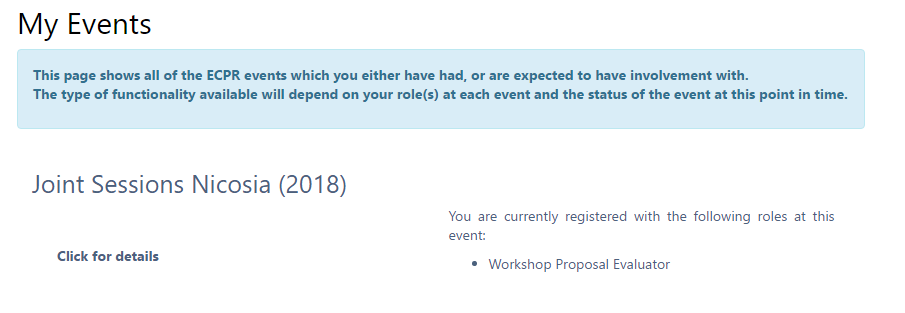
Your My Events Page will be displayed and here you will see a list of past and current events that you are or have been involved in. You will have received an email informing you of your role in evaluating workshops and which year it is for. The example below shows the page presented for Nicosia 2018 for those in the role of Workshop Proposal Evaluator.
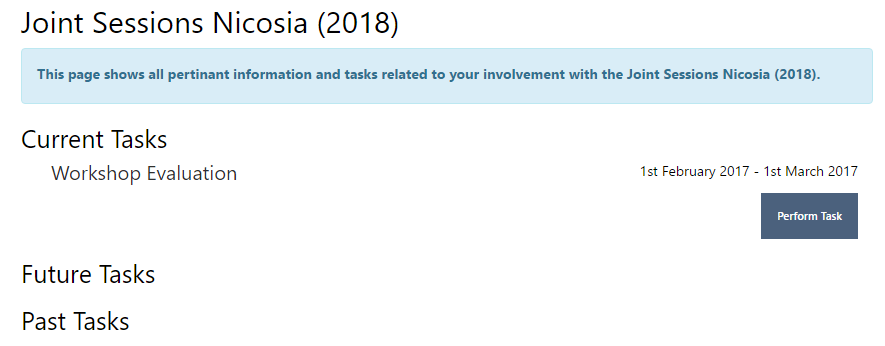
- Select Click for details. The following page is displayed showing which tasks are available for you to perform:
- Select the appropriate Perform Task button to display the list of Workshops that you have been assigned to evaluate. Any Evaluations that you have already performed and completed will be highlighted in green. You may still check and adjust these as necessary.
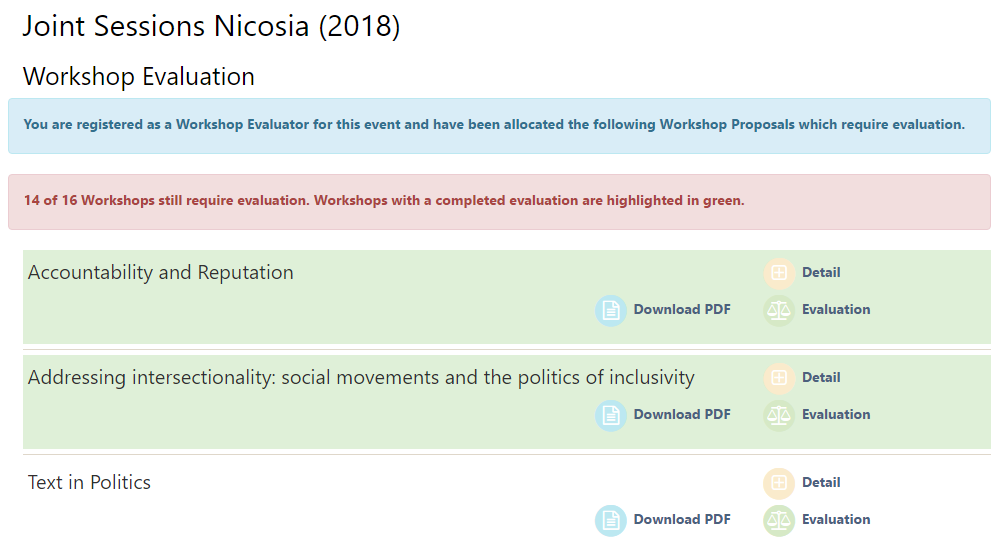
You will see three buttons next to each Workshop to be evaluated:
 |
The Detail button displays all the data required for you to be able to evaluate the Workshop proposal. This information displayed as it was provided by the primary Workshop Director. |
 |
The Evaluation button displays all the criteria for the Workshop to be evaluated against. |
 |
If required, select the Download PDF button to save the Workshop details to your PC. This will be saved to your default download folder and can be used for reading on screen or for print purposes. |
You may find it useful to have the PDF and the evaluation form displayed side by side. Simply resize the browser and PDF viewing software to a size that suits you. It is also possible to have two instances of the browser open so that you can display the information side by side.
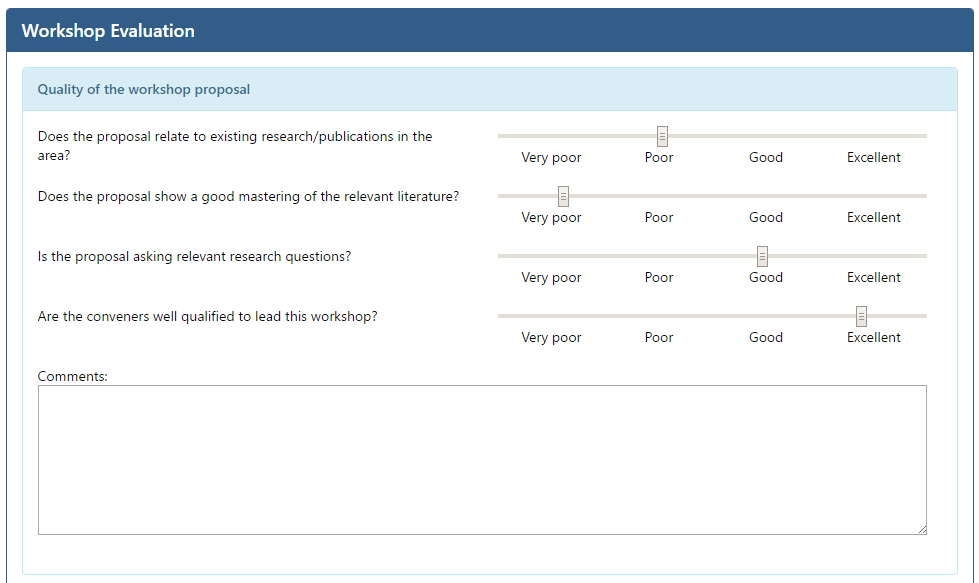
- Select the Evaluation button to display the evaluation criteria (see example below). Here you will find the criteria to rate the Workshop proposal against. Adjust the slider to the desired rating for each question and provide comments where you feel more explanation might be required for the final selection process carried out by the Academic Convenors. By default, each of the criteria is set to Good.
- When you have finished each Workshop’s evaluation select the Save button. All the Workshops that you have evaluated will now be highlighted in Green. Please note that selecting the Cancel button will reset the form and close it. When you start your evaluations by moving a slider, two buttons will appear that enable you to save all the evaluations in one go or reset all your changes for un saved evaluations.
Warning: Be careful using the Cancel All Changes button as this action cannot be undone.
